Content
Step by step Guide
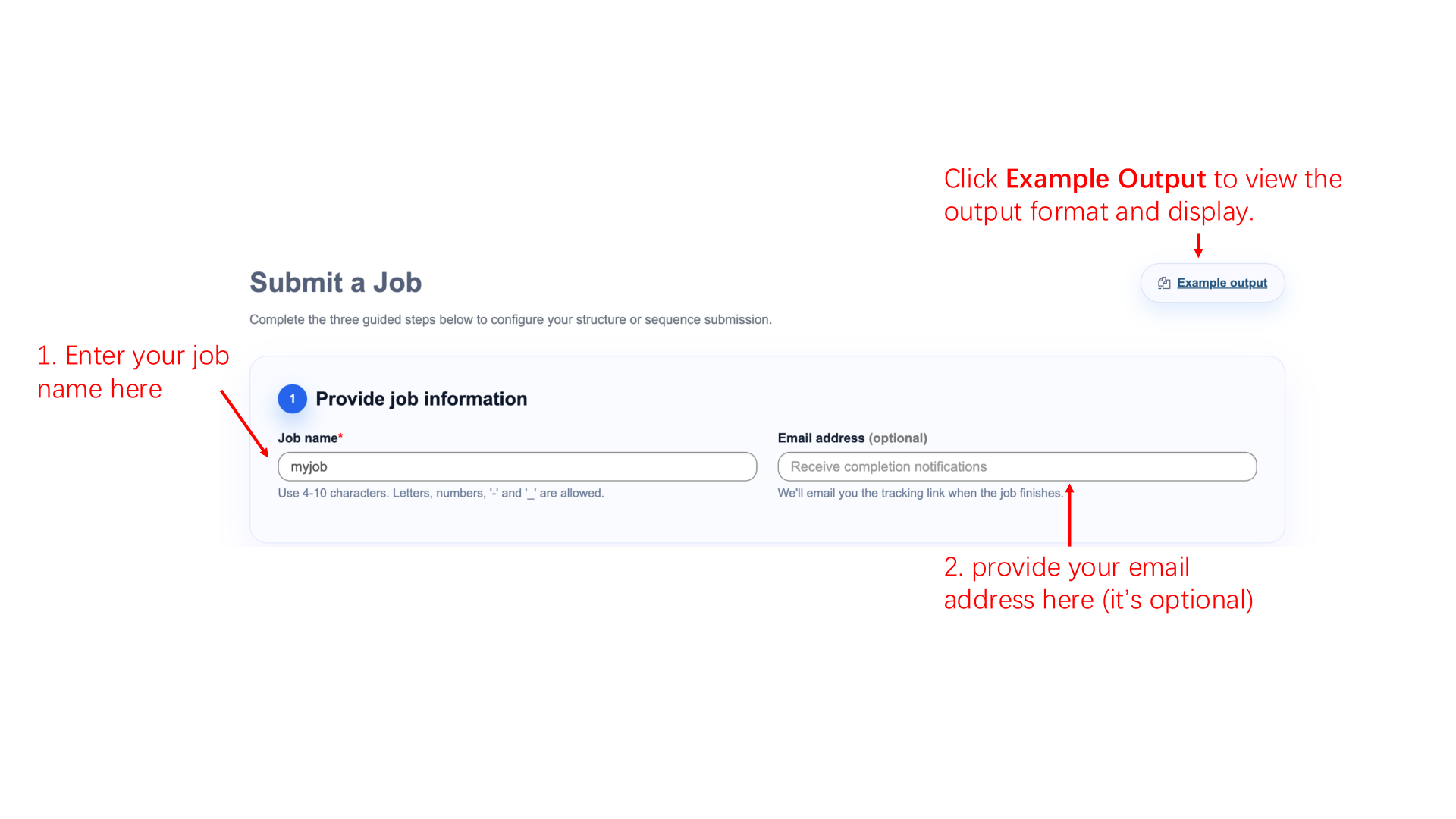
Step1 Provide job information
You can name your job however you like—just make sure the name is 4-10 characters long. An invalid job name may disable the “Run xBind” button. Only letters, numbers, -, and _ are allowed.
You can also choose whether to provide an email address. If you do, we’ll email you the tracking link when the job finishes.
Step2 Provide protein structure or sequence
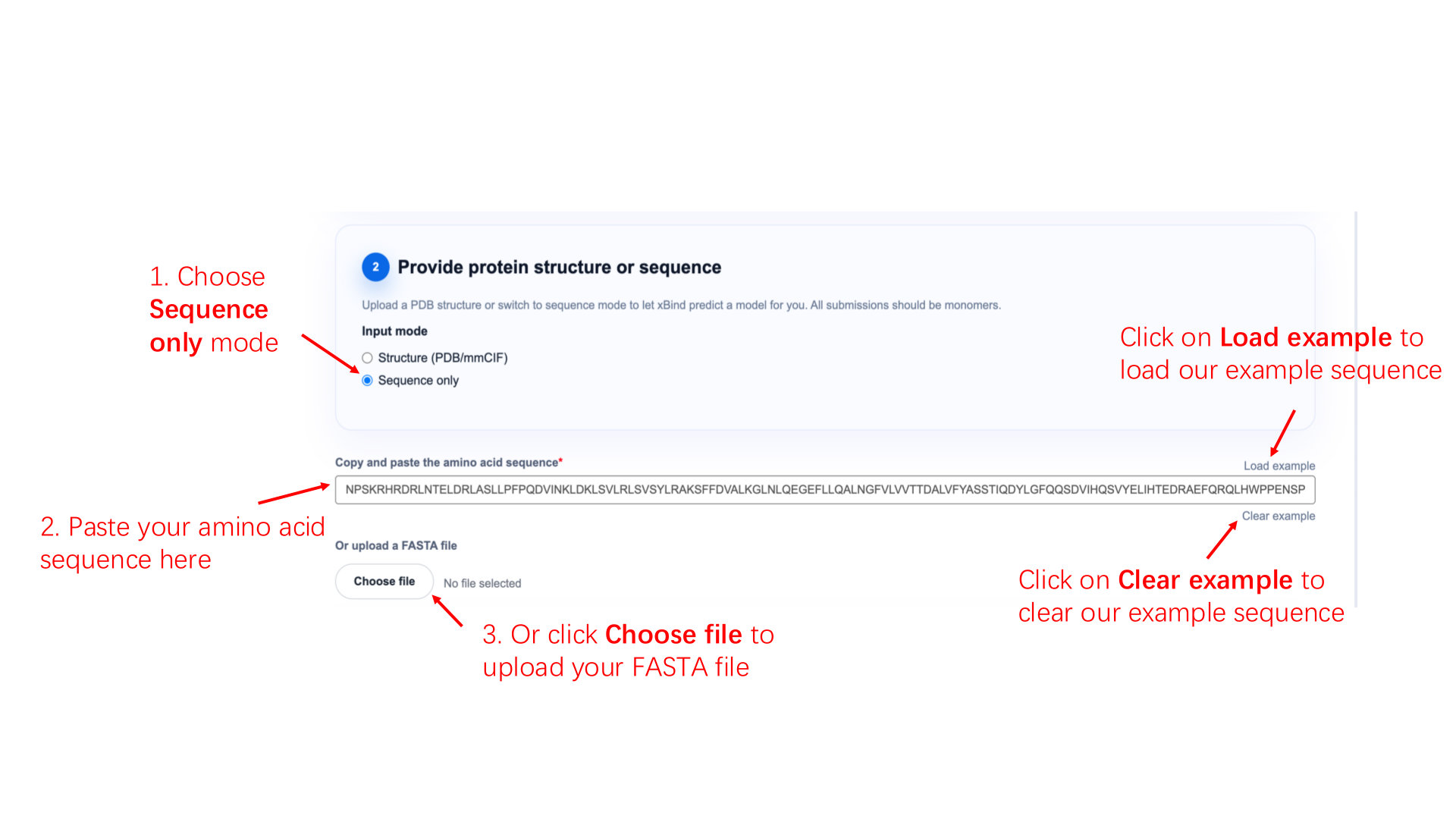
If you want to predict binding sites using only the protein sequence, choose "Sequence Only" mode. Paste the protein amino acid sequence into the corresponding field, or click "Choose file" to upload a FASTA file.
On the right side of the input box, you'll see "Load example" and "Clear example." Click "Load example" to insert our sample sequence, or "Clear example" to remove it.
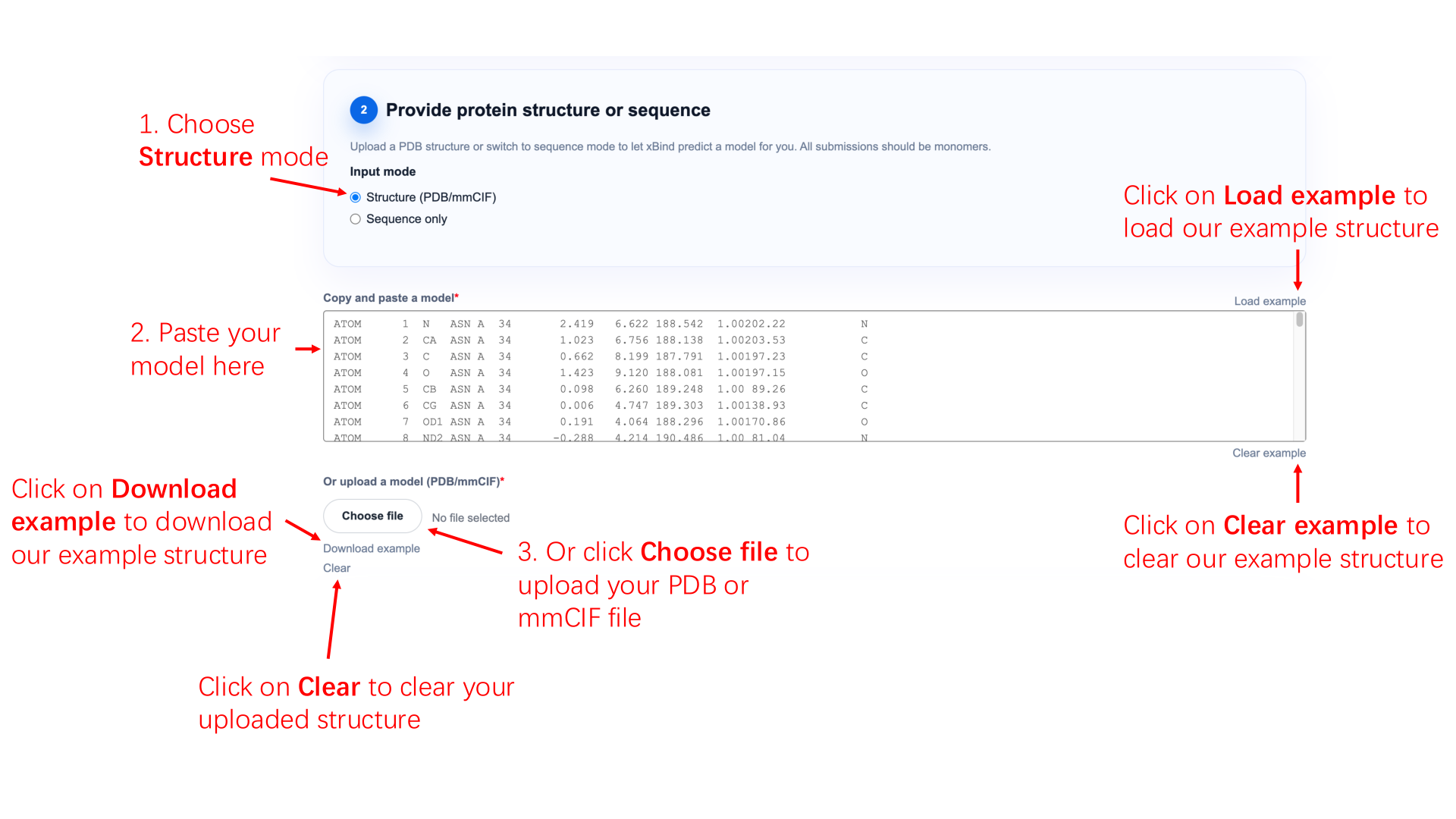
If you want to predict binding sites using a protein structure, choose "Structure (PDB/mmCIF)" mode. Paste the protein model into the input field, or click "Choose file" to upload a PDB or mmCIF file.
On the right side of the input box, you'll see "Load example" and "Clear example." Click "Load example" to insert our sample structure, or "Clear example" to remove it.
At the bottom, click "Download example" to download our sample protein structure, or "Clear" to remove your uploaded structure.
Step3 Choose interaction partner
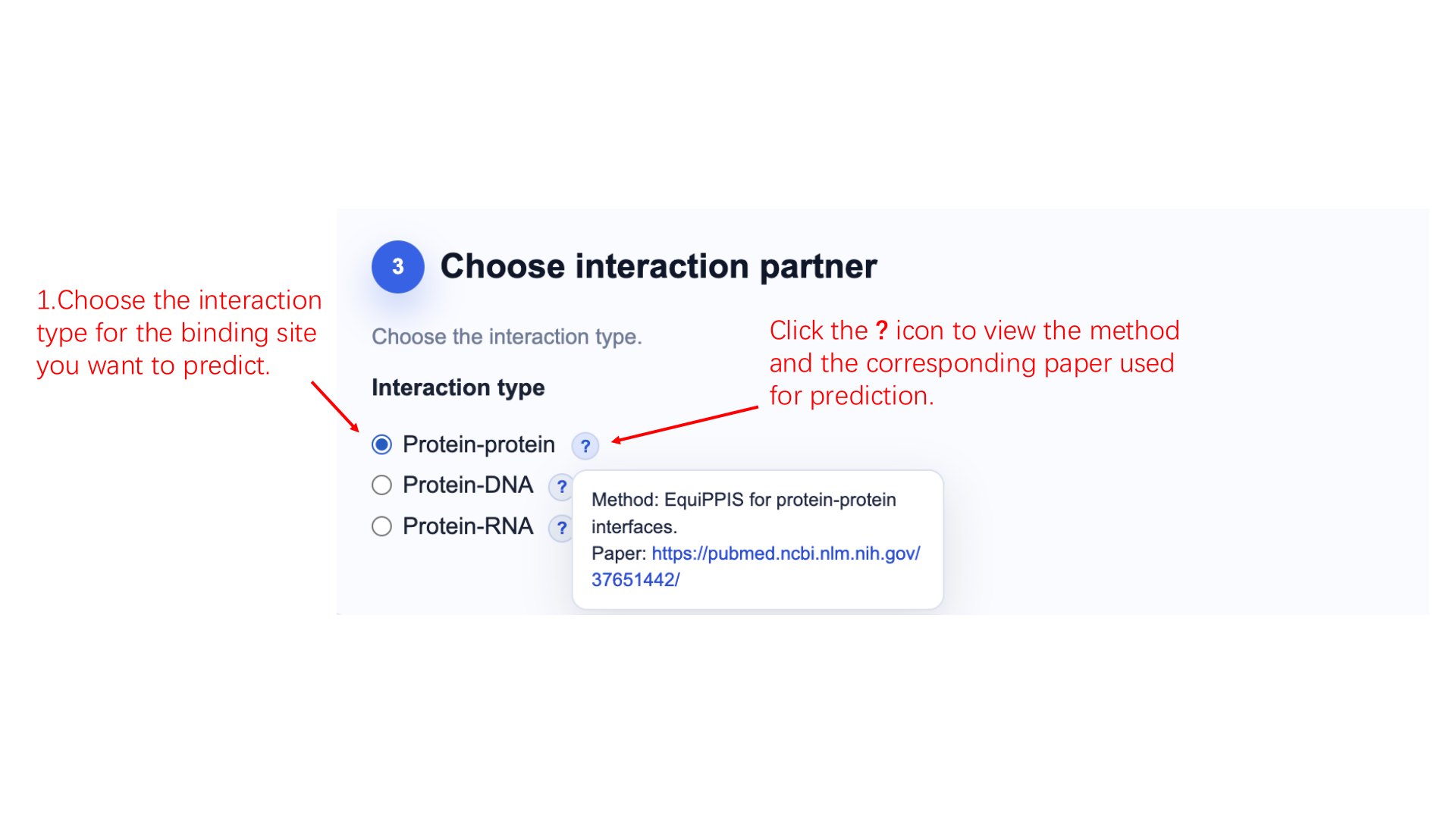
Select the binding-site interaction type you want to predict. We support three interaction types: protein-protein, protein-DNA, and protein-RNA. Click the ? icon to view the method and the corresponding paper used for prediction.
Step4 Choose job privacy
Choose your job privacy setting. Public jobs can be viewed by anyone visiting our webserver in the Job Queue. Private jobs will still appear in the public queue, but only the submitting user can open the results.
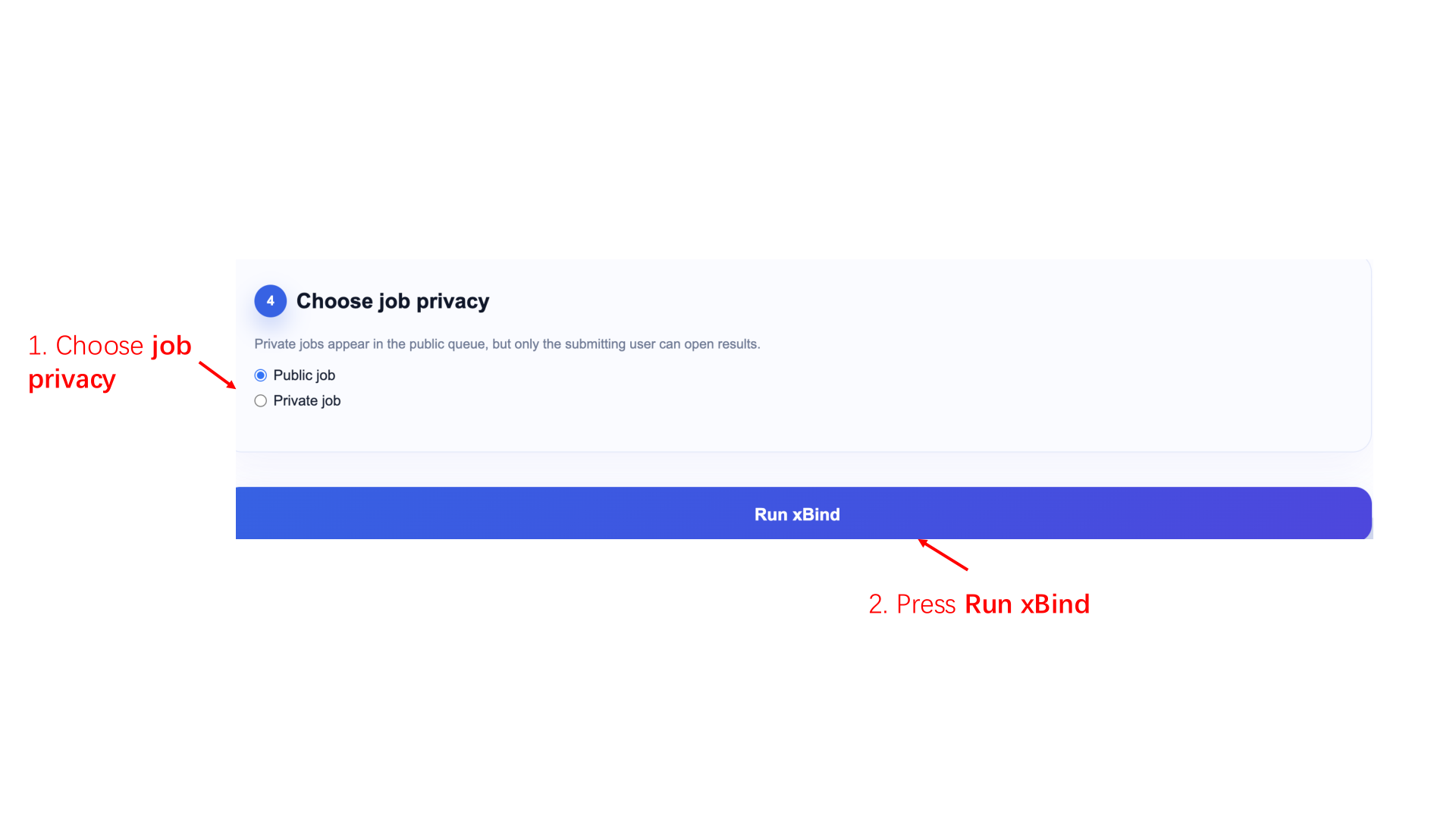
When you're ready, click Run xBind to submit your job. After a successful submission, you'll see a page like this:
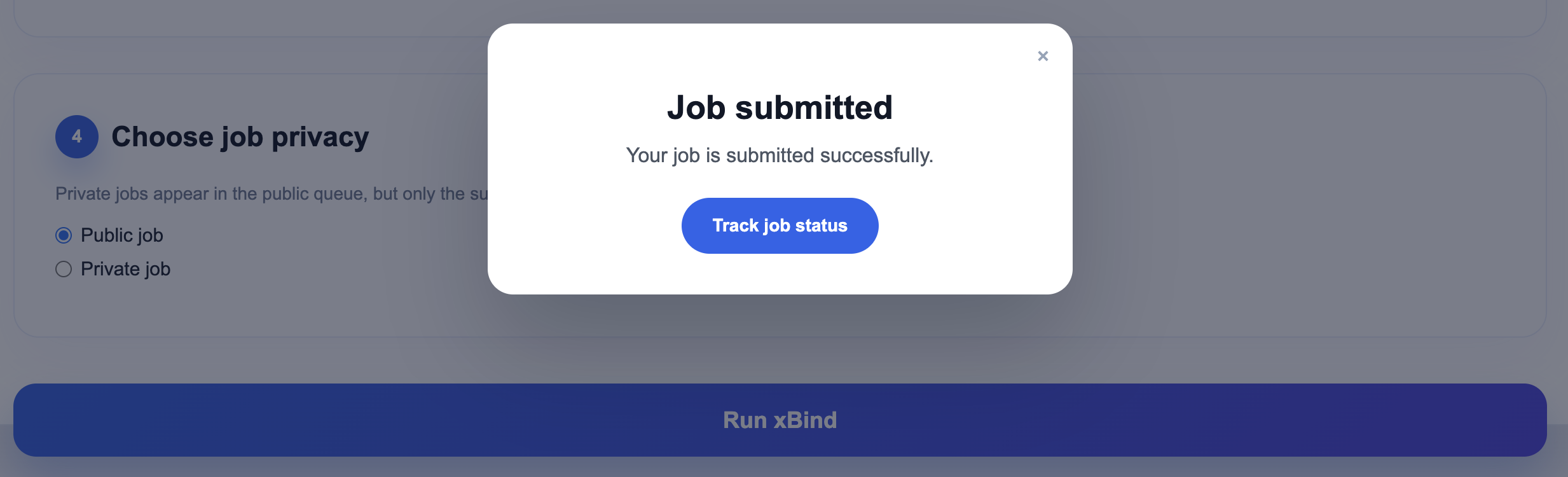
These visuals highlight where to choose the input mode, where to paste/upload sequence or structure input, how to use Load example and Clear example, how to select the interaction type, and how to finalize submission.
Input
Example input walkthrough
If you click Load example on the submission page, xBind auto-fills sample input so you can quickly test either workflow. In Sequence Only mode, the center input area accepts amino-acid sequence text or a FASTA upload, while the side controls let you load or clear the sample sequence before submission.
In Structure (PDB/mmCIF) mode, you can paste coordinates directly or upload a structure file. The same panel provides Load example and Clear example, and the bottom tools support downloading the sample structure or clearing your current structure input.
1) Supported input modes
xBind supports two workflows:
- Structure mode: paste or upload a structure file (PDB/mmCIF).
- Sequence-only mode: provide an amino-acid sequence; xBind will build a structure before binding-site prediction.
2) Structure input requirements
- Accepted formats:
.pdb,.ent,.cif,.mmcif, or pasted coordinate text. - Use a single protein chain whenever possible to avoid ambiguity.
- To keep the server efficient, please submit sequences with fewer than 500 residues. If your sequence is longer than 500 residues, please contact us.
- For best stability, keep backbone atoms present and avoid heavily corrupted structures.
- If your file contains multiple models/chains, clean it before submission to reduce preprocessing errors.
3) Sequence-only requirements
- Paste plain amino-acid letters only (no headers or numbering).
- Avoid non-standard characters such as
*, spaces in the middle, or mixed symbols. - To keep the server efficient, please submit sequences with fewer than 500 residues. If your sequence is longer than 500 residues, please contact us.
- If you already have a trusted structure (e.g., AlphaFold output), use Structure mode for more control.
4) Job metadata and validation
- Job name must be 4-10 characters and use letters, numbers,
-, or_. - Email is optional but recommended for private jobs and result notification.
- If the submit button stays disabled, check highlighted validation messages first.
- When possible, keep job names short and unique so tracking jobs in queue is easier.
Output
Example output walkthrough
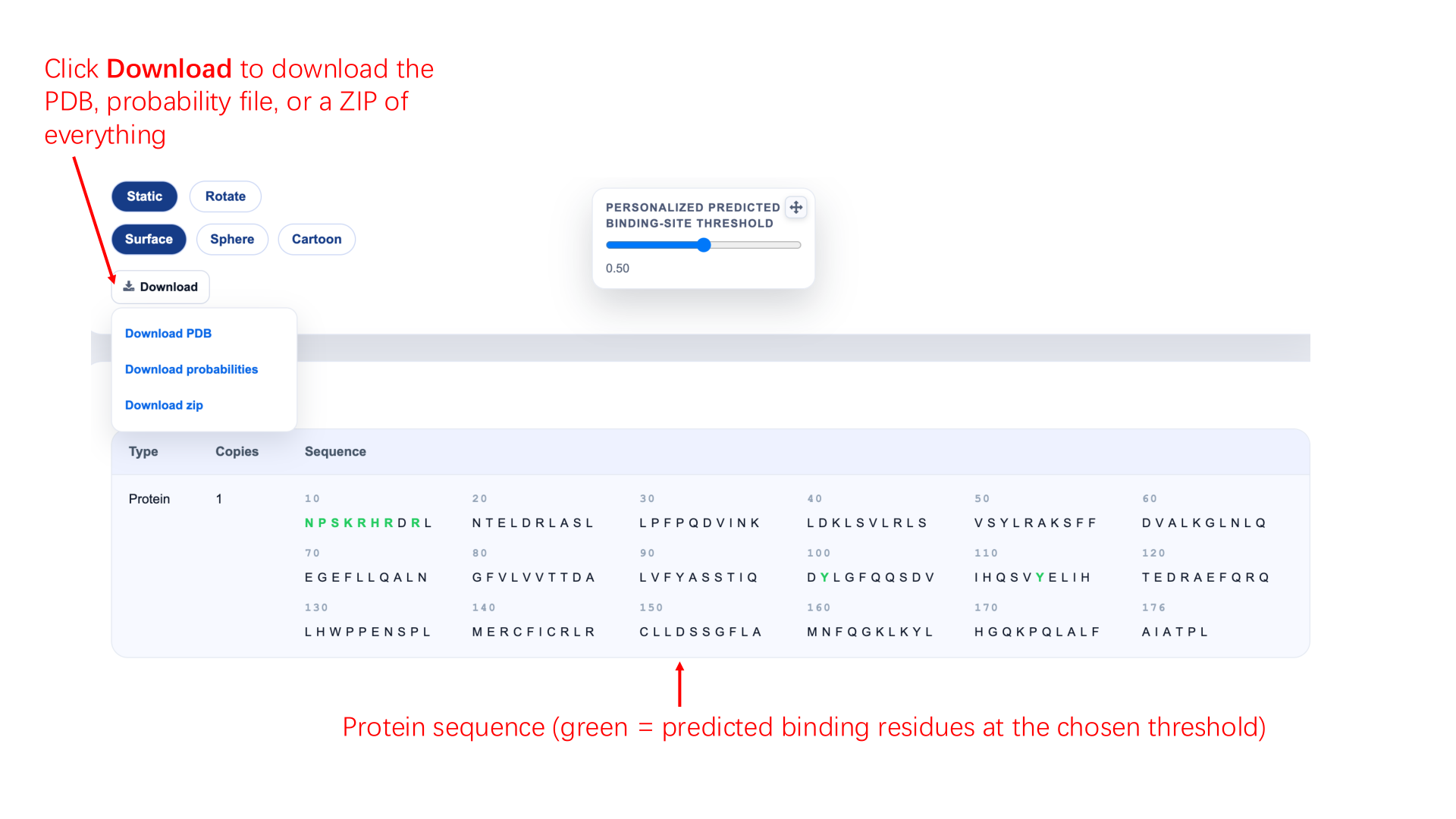
If you click Example Output, you'll see a sample results page. The top bar shows basic job information, including job privacy, job name, submission time, input mode, and the selected interaction type. The left panel displays the 3D protein structure, where green regions mark residues predicted as binding sites. At the bottom-left, you can switch between static and rotating views and change structure style (surface, spheres, or cartoon). The bottom center provides a threshold slider (0-1): higher thresholds are stricter and usually highlight fewer high-confidence residues, while lower thresholds are more lenient and typically highlight more residues. Coloring now uses threshold-surface highlighting only. The right panel shows residue-level binding probabilities, and the green dashed line indicates your currently selected threshold.

If you click Download, you can choose what to save from the results page: the PDB structure file, the probability file, or everything bundled together as a ZIP. Below that, the page also shows the protein amino acid sequence you submitted. Residues highlighted in green are the ones predicted to be in the binding site at your selected threshold.
1) Reading prediction outputs
- Probability score per residue: larger values indicate stronger binding-site likelihood.
- Threshold controls: adjust the cutoff to focus on high-confidence residues.
- 3D/interactive views: inspect spatial clustering before biological interpretation.
- Partner-aware context: interpret scores in the selected interaction context (Protein/DNA/RNA), not across different modes.
2) Download package contents
- PDB: structure used/displayed by the result page.
- Probability file (.out): residue-level prediction values.
- ZIP bundle: PDB + probabilities + generated artifacts + run metadata.
- Download the ZIP bundle for reproducibility and offline review.
3) Recommended interpretation practice
- Compare multiple thresholds instead of relying on a single cutoff.
- Prioritize residues that remain positive across nearby threshold ranges.
- Cross-check with known motifs/domains or experimental evidence when available.
- Treat borderline scores conservatively and validate with orthogonal evidence when possible.
FAQ
1) Why is “Run xBind” disabled?
Most cases are caused by invalid job name, invalid input format, or malformed optional email. Fix highlighted fields and try again.
2) How long are jobs stored?
Jobs are retained on the server, but long-term preservation is not guaranteed. Download ZIP results for archiving.
3) Can I submit multiple jobs in batch?
The web form handles one job at a time. For large-scale runs, contact the team to coordinate batch processing.
4) Can I track multiple jobs?
Yes. Use the Job Queue page to monitor queued, running, and finished jobs.
5) Why does my result link not open?
Check that the full URL is copied correctly. For private jobs, opening from a different environment/network may fail depending on server policies.
6) Need help or reporting issues
When contacting support, include job ID, submission mode (structure/sequence), partner type, and a brief error description.